
Division of Information Technology
ECSU Virtual Lab (VLab)
The Division of Information Technology is proud to introduce the ECSU Virtual Lab (VLab)!
Key Features of ECSU VLab:
Consistent Performance:
VLab performance depends on ECSU’s host servers—not your personal device. Whether you’re using a 6-year-old laptop or a brand-new desktop, you’ll get a consistent, high-quality experience.
Anywhere Access:
No longer limited to physical computer labs, ECSU-licensed software is now accessible wherever you have an internet connection—on or off campus.
Secure Login:
You must log in using your ECSU credentials to access the Virtual Lab.
Windows Users:
If you’re using a Windows device, we strongly recommend following the installation instructions provided below for the best experience.
Accessing ECSU Virtual Lab via Windows App
Step 1
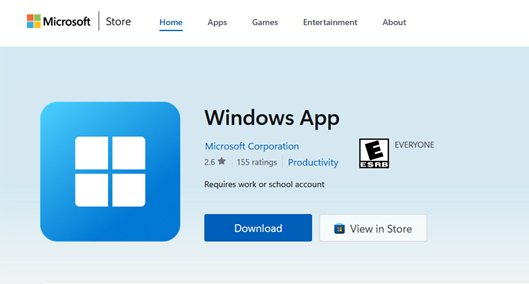
Go to the Microsoft Store to download the Windows App
Step 2
Click Download
Step 3
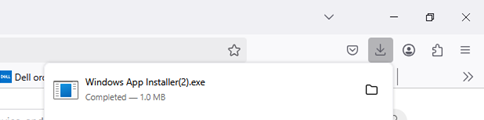
Click the download arrow and then click on the .exe file
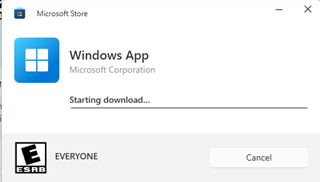
The app will begin to download
Step 4
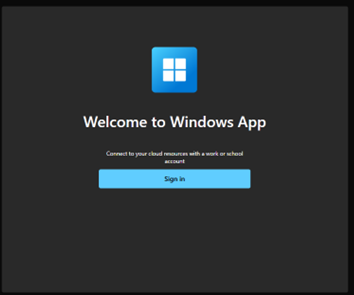
Click Sign In
Step 5
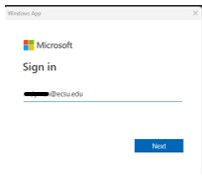
Enter your ECSU email address.
Step 6
Click Next
Step 7
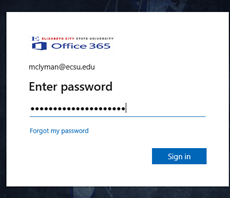
Enter your ECSU password
Step 8
Click Sign In
Step 9
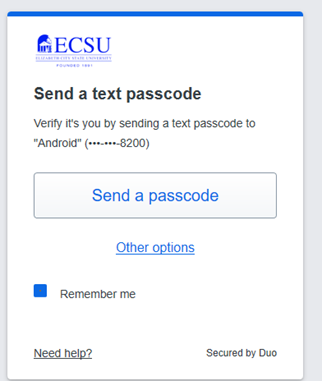
Authorize DUO
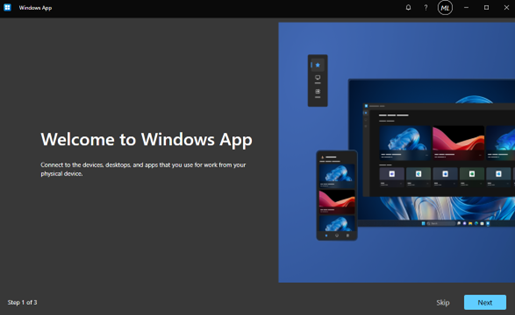
The tutorial screen will appear. This step can be skipped.
Step 10
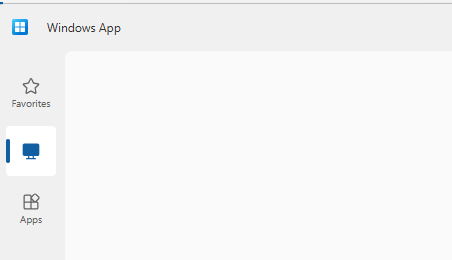
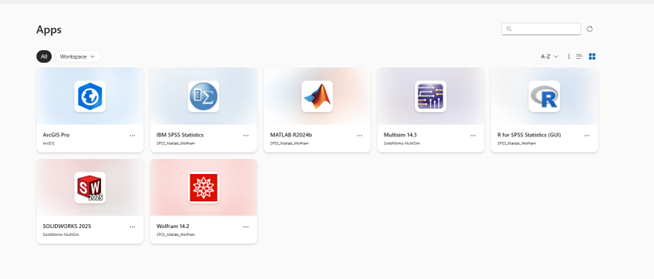
Select Apps on the left pane.
Step 11
Double click on the software that you need to use
Step 12
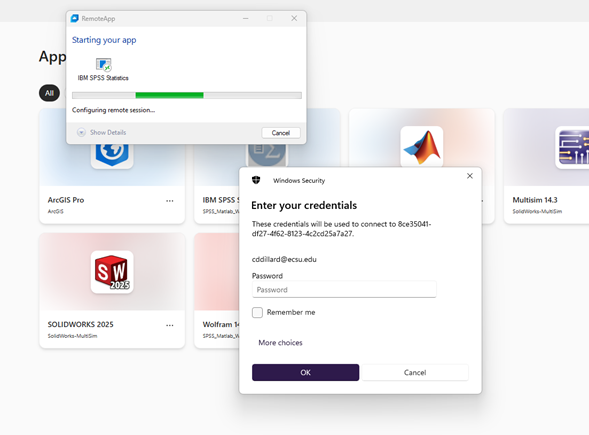
Enter your ECSU password
Step 13
Click OK
Software will start to install
*Please be aware that some software cannot be accessed without a username and password.
Contact Us:
Please call the Helpdesk at 252-335-3532 for assistance Monday through Friday 8:00 a.m. to 5:00 p.m. excluding campus holidays.